


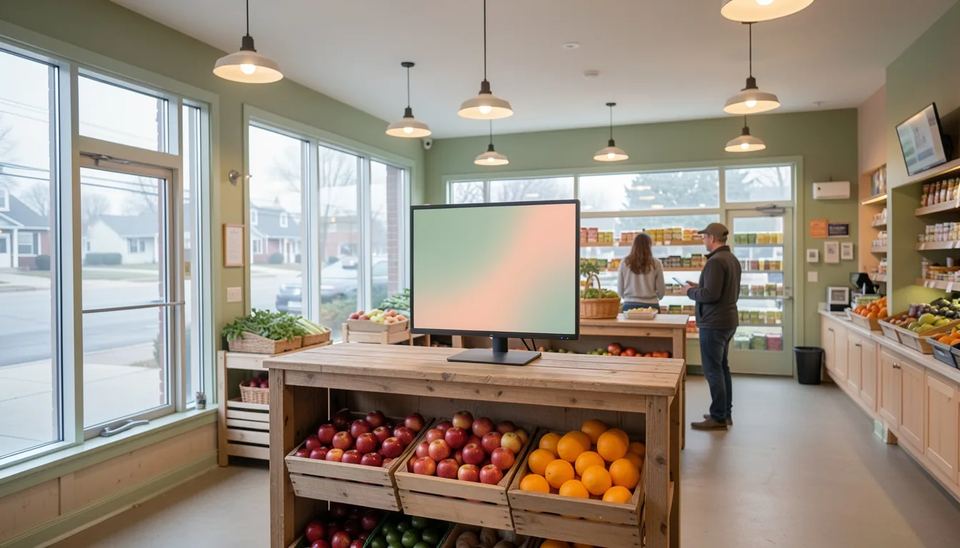
To schedule digital signage by time of day, split the week into dayparts (say 6:00 to 10:30, 10:30 to 16:00, 16:00 to close), build one playlist per block, set a default playlist for the gaps and assign the schedule to screens set to their local time zone. Look DS handles this from $15 per screen per month, with offline playback.
Key takeaways
- For most small and mid-size businesses, Look DS is the simplest way to run time-of-day schedules: it starts at $15 per screen per month ($6 with yearly volume billing) and its free player runs on 8 platforms.
- A working daypart schedule needs four things: one playlist per time block, a default playlist for uncovered hours, clear rules for overlaps and the correct time zone on every player.
- Most signage platforms run schedules on the player’s own clock, so a wrong time zone on the device shifts every daypart, even if the CMS looks right.
- Start with 3 or 4 dayparts per screen. More blocks than that rarely pay back the extra content work for a small team.
- Cafes daypart by menu, retail by shopper type and promotions, offices by who is in the building at that hour.
What is dayparting in digital signage?
Dayparting means showing different content on the same screen at different hours, automatically. The term comes from broadcast TV and radio, where ad slots were sold by “parts” of the day.
On a screen, it looks like this: a breakfast menu until 10:30, lunch combos until 16:00, then a dinner or happy hour board. The CMS (content management system, the web dashboard where you upload and schedule content) switches playlists on its own, so nobody has to remember to swap anything.
The business case is simple. A screen that shows pancakes at 14:00 wastes the most valuable spot in the room. A Delphi Display white paper puts the expected sales lift from digital menu boards at 3% to 5%, and much of that comes from showing the right item at the right hour. For menu-specific design, see our digital menu boards guide.
How do you set up a time-of-day schedule, step by step?
You build playlists first, then a schedule that places them on a weekly grid, then you assign that schedule to screens. The order matters, because most platforms will not let you schedule content that is not in a playlist yet.
- Map your dayparts from sales or traffic data. Pull hourly sales from your POS or footfall counts. Mark where the mix changes, not just where volume peaks.
- Build one playlist per daypart. Keep each one short: 4 to 8 slides of 8 to 10 seconds each, so a customer standing in line sees the full loop.
- Create the default playlist. This plays whenever no block is active. Make it evergreen: brand, opening hours, Wi-Fi password.
- Draw the weekly grid. Add each playlist with a start and end time and the days it runs. Weekends usually need their own blocks.
- Set start and end dates for anything seasonal, so the pumpkin latte board disappears on its own in December.
- Assign the schedule to a screen group, not screen by screen, if several locations share the same plan.
- Check the player’s time zone and clock, then watch one transition live or via a remote screenshot.
A starter plan for a single venue might look like this:
| Daypart | Hours | Playlist | Goal |
|---|---|---|---|
| Morning | 6:00 to 10:30 | Breakfast, coffee add-ons | Raise ticket size |
| Midday | 10:30 to 14:00 | Lunch combos | Speed up ordering |
| Afternoon | 14:00 to 17:00 | Snacks, loyalty signup | Fill the slow hours |
| Evening | 17:00 to close | Dinner or happy hour | Push high-margin items |
| Closed | Close to 6:00 | Screen off | Save power, prevent burn-in |
The last row is the one people forget. Turning the panel off overnight cuts power use and reduces burn-in risk on static menu boards. Our guide to turning screens on and off automatically covers HDMI CEC and RS-232 options.
Which rules decide what plays when blocks overlap or leave gaps?
The default content rule and the priority rule decide almost everything. Learn how your platform handles both before you build 20 blocks.

Gaps fall back to default content
In Yodeck, for example, if the current time does not match any rule, the screen returns to its default screen content. Other platforms show a blank or placeholder frame instead. Always set a default, even if you think your blocks cover all 24 hours. One wrong end time leaves a black screen in front of customers.
Overlaps behave differently by platform
Some systems give priority to the newer or higher-ranked event. Others rotate both. Brix, for instance, documents that two blocks over the same minutes take turns on screen. If you want a takeover (a flash sale replacing the lunch menu for one hour), use a priority setting rather than stacking blocks and hoping.
Blocks that cross midnight
Bars and 24-hour stores need blocks like 22:00 to 2:00. Some tools accept an end time earlier than the start. Others need two blocks: 22:00 to 23:59 and 0:00 to 2:00. Test this on a single screen before rolling it out.
Item-level timing instead of new playlists
If only one or two slides change by hour, you may not need a separate playlist. Yodeck’s Scheduled Availability lets a single media item show only in set hours or days. This keeps the playlist count down when a promotion runs only in the afternoon.
How do time zones and daylight saving affect schedules?
Most platforms run the schedule on each player’s local clock, so 9:00 means 9:00 wherever that screen hangs. That is what you want for a chain across New York and Denver, but only if every device has the right time zone.
Yodeck states that every player uses its own local time zone to interpret schedules. ScreenCloud advises that the device time zone should match the ScreenCloud player time zone unless you deliberately want another location’s time.
What goes wrong in practice:
- The installer set up the player in the office. A stick configured in Chicago and shipped to a Phoenix store keeps Chicago time. Every daypart runs an hour or two off.
- Fixed offset instead of a region. A device set to “UTC minus 5” does not move with daylight saving. Set a named region such as America/New_York so it follows the clock change. In 2027, US clocks move forward on March 14 and EU clocks on March 28.
- The on-screen clock looks right, but the schedule is wrong. Clock widgets often have their own time zone setting, separate from the device clock that drives schedules. Fix the device, then check both agree.
- No time sync. A player that has been offline for weeks can drift. Keep automatic network time on.
For a national chain, decide one thing up front: do promotions start at local 9:00 everywhere, or at one moment for all stores? A product launch timed to a TV ad needs the second option. A breakfast menu needs the first.
Dayparting examples for cafes, retail stores and offices
The schedule logic stays the same across venues. What changes is the reason each block exists.
| Venue | Typical dayparts | What changes | Main win |
|---|---|---|---|
| Cafe | Breakfast, lunch, afternoon, closed | Menu and add-ons | Bigger tickets, no printed swaps |
| Retail store | Opening, midday, after work, weekend | Promotions and audience | Right offer for who is in the aisle |
| Office | Arrival, workday, lunch, evening | Messages by audience | Fewer ignored screens |
A cafe with 2 menu boards
Two 43-inch portrait screens behind the counter. Board 1 runs the full menu by daypart: breakfast until 11:00, then sandwiches. Board 2 is the upsell board: pastry plus coffee in the morning, iced drinks and cookies after 14:00 when the line is shorter and people browse. A third block, 30 minutes before close, shows tomorrow’s opening hours and a loyalty QR code. The owner builds this once and changes prices only, instead of reprinting boards every season.
A clothing store with 4 screens
The window screen faces the street. Before opening it shows a bold sale message for commuters walking past. From 10:00 it switches to new arrivals. After 17:00, when office workers stop by, it pushes express services such as click and collect. The two in-store screens follow the same blocks with shorter clips, because shoppers walk past them in 3 to 5 seconds. More retail layouts are in our retail signage guide.
An office with lobby and kitchen screens
The lobby screen runs visitor welcome messages and wayfinding from 8:00 to 10:00, then company news. The kitchen screen gets the most attention at lunch, so that is when the HR survey and the event signups go live, not at 9:00 when nobody is there. After 18:00, both switch to a security reminder and building closing times. See our internal communications guide for content ideas per audience.
Which software handles time-of-day scheduling well?
Any serious signage CMS can switch playlists by hour. The differences are price, how time zones are handled, offline behavior and how much you need extra hardware.
| Software | Starting price | Time zone handling | Offline playback | Free trial |
|---|---|---|---|---|
| Look DS | $15 per screen per month, $6 with yearly volume billing | Scheduling by time and day across screen groups | Yes | Yes |
| Yodeck | See vendor pricing | Each player uses its local time zone | Yes | See vendor site |
| ScreenCloud | See vendor pricing | Per-screen time zone in Studio, device must match | See vendor site | See vendor site |
Look DS
Look Digital Signage is a cloud signage CMS with smart scheduling and playlist automation, priced from $15 per screen per month or $6 per screen per month with yearly volume billing, with a free trial. Its free Look Player app runs on Android, Windows, Linux, macOS, LG webOS, Samsung Tizen, Raspberry Pi and Fire OS. It suits businesses from a single cafe to multi-location chains and resellers that need dayparted content on screens they already own.
Pros:
- Offline playback, so a Wi-Fi drop at 11:58 does not stop the lunch switch at 12:00.
- Multi-zone screen layouts: the menu zone can change by daypart while a promo zone runs its own loop.
- User roles and permissions, so a store manager can edit prices without touching the master schedule.
- Cloud or on-premise deployment, for IT teams that cannot use public cloud.
- Its own 4K players. The Verde PRO HDMI stick ($149) uses HDMI CEC to turn the TV on and off and switch input on schedule, and a hardware watchdog restarts it if it hangs.
- White label and reseller program, and a 4.9 rating on Capterra from 116 reviews.
Cons:
- A smaller brand than Yodeck or ScreenCloud, with fewer third-party apps in its marketplace.
- Its hardware players ship from Look’s own shop, not from big retailers.
Prices and plans are on Look’s pricing page, and the scheduling options are listed on the Look DS features page.
Yodeck
Yodeck offers calendar schedules with repeat rules, default content for gaps and per-item availability windows. Its docs are clear on time zones: each player reads the schedule in its own local time.
- Pros: item-level scheduling avoids playlist sprawl; well-documented behavior for gaps and priorities.
- Cons: according to an RFP.wiki review, advanced media scheduling sits on the Premium plan, so lower tiers get fewer dayparting tools.
ScreenCloud
ScreenCloud lets you set a time zone per screen in its Studio dashboard, or leave it blank to follow the screen’s network location. It suits teams that already work in its app ecosystem.
- Pros: explicit per-screen time zone control for multi-region networks.
- Cons: you need to keep the device OS time zone and the player time zone in line, which adds a setup check per screen.
For a full price breakdown across vendors, see our software pricing comparison.
What breaks dayparting in real installations?
The schedule itself rarely fails. The screen, the network or the people around it do.
- Consumer TVs that update overnight. A smart TV installs firmware at 3:00, reboots into its home screen and sits there through breakfast. Disable auto updates or use a player with auto start and a watchdog.
- The TV is off when the block starts. If the panel was switched off by hand, the schedule plays to a black screen. CEC power control or a commercial display with its own timer fixes this.
- Wi-Fi drops at the switch time. Players without offline playback may miss the new playlist. Pre-load all dayparts to local storage.
- Nobody owns the content. The 14:00 block still promotes a drink that sold out in August. Give one person per site the job, with a 10-minute weekly check.
- Too many blocks. Ten dayparts per screen means ten playlists to refresh. Most venues get 90% of the value from 3 or 4.
When a transition fails, start with the player clock, then the schedule assignment, then the network. Our troubleshooting guide walks through each check.
Disclosure: Digital Signage Trends is published by Look Digital Signage.
FAQ
How many dayparts should a small business start with?
Three or four is enough for most cafes, shops and offices. Each block needs its own content and someone to refresh it, so add more only when sales data shows a clear shift in what customers buy at a given hour.
Can I schedule different content on different days of the week?
Yes. Most CMS platforms let you set which days a block runs, so a weekday lunch combo and a weekend brunch board can share the same screen. Build separate weekend playlists rather than editing the weekday ones every Friday.
Why does my scheduled content play an hour late?
The player’s time zone or daylight saving setting is usually wrong. Check that the device uses a named region (for example Europe/London) rather than a fixed UTC offset, and that automatic network time is on. Then confirm the CMS and the device show the same local time.
What happens if the internet goes down during a scheduled change?
It depends on the player. Platforms with offline playback, such as Look DS and Yodeck, keep running the stored schedule and switch blocks on time without a connection. Players that stream content live will show an error or freeze until the network returns.
Do I need a separate media player for scheduling?
Not always. Samsung Tizen and LG webOS commercial displays can run a signage app directly, and many platforms also run on Android boxes or Fire TV devices. A dedicated player helps when you need reliable power and input control on consumer TVs, or a watchdog that restarts a frozen device.
Sources
- Why Digital Menu Boards are Good for Business (Delphi Display)
- How to quickly assign content to your Screens (Yodeck Documentation)
- Schedules Introduction (Yodeck Documentation)
- Scheduled Availability (Yodeck Documentation)
- How to Manage Timezone Settings for Apps, Screens and Devices in ScreenCloud
- How to Schedule Digital Signage by Time of Day (Brix)
- Set the Time Zone and Clock on Signage Players (DigitalSignage.com)
- Yodeck Key Compliance (RFP.wiki)