

In 2026, AI content tools inside a digital signage CMS do six practical jobs: generate images, generate short videos (3 to 12 seconds in Look DS), edit or restyle photos, remove backgrounds, animate stills, and rewrite or translate text. Look DS is rolling out all six in its editor, on plans from $15 per screen per month. Yodeck, ScreenCloud and OptiSigns each cover part of that list.
Key takeaways
- For small and mid-size teams that make their own screen content, Look DS is the most complete option right now: six AI tools sit inside the editor, the price of each run shows before you run it, and the original file is never overwritten.
- Yodeck’s AI covers text (Magic Write), one-click background removal and an AI Agent that runs account tasks, not image or video generation.
- ScreenCloud turns pasted text into styled posts with QuickPost and scores live screen content with Screen Score.
- OptiSigns builds several finished designs from one prompt with AI Designer and includes a free background remover.
- AI saves the most time on small, repeated jobs: a weekly promo, a seasonal refresh, a translated notice. It does not fix a dim screen, a weak offer or content nobody updates.
What do AI content tools in a signage CMS actually do in 2026?
They turn the slow parts of making screen content into one step inside the editor. A CMS (content management system) is the web dashboard where you build content and send it to screens. The AI tools inside it now fall into six groups:
- Image generation: a picture from a text prompt, such as a product shot, a background or a seasonal scene.
- Video generation: a clip of a few seconds from a prompt.
- Image editing: swap a background, remove an object, change colors or restyle a photo by describing the change.
- Background removal: cut a product or person out of a photo with one click.
- Animation: turn a still photo into a short moving clip.
- Text tools: shorten, change tone, rewrite or translate the copy on a slide.
Most of the time saved comes from staying in one place. Before, a promo meant Canva or a freelancer, a download, a re-upload and a resize for the screen. Inside the CMS, the result lands on the canvas at the right size. For the wider picture of AI in signage, from audience analytics to scheduling, see our overview of AI in digital signage marketing.
How do the Look DS AI tools work?
Look Digital Signage (Look DS) is a cloud digital signage CMS with an optional on-premise deployment, priced from $15 per screen per month, or $6 per screen per month with yearly volume billing. Its free Look Player app runs on Android, Windows, Linux, macOS, LG webOS, Samsung Tizen, Raspberry Pi and Fire OS. From the week of 28 September 2026, Look DS is rolling out six AI tools inside its content editors. It suits teams that make their own content without a designer.
The six tools
- AI image generation. Write a prompt, pick a model, a style (Photo, Illustration, 3D, Cinematic, or Sticker for assets), an aspect ratio and a resolution. You can add reference images, including one taken from the canvas in one click. Quick-start tags cover Product, Food, People and Background.
- AI video generation. Short clips of 3 to 12 seconds from a prompt, with first and last frame control on models that support it.
- Edit with AI. Select an image on the canvas, then describe the change: replace the background, remove an object, change colors or restyle it.
- Background removal. One click, no prompt. The cut-out replaces the original on the canvas.
- Animate with AI. Turns a selected still into a short video clip in place, with no re-upload.
- AI text editing. Make a text block shorter, change its tone, rewrite it or translate it.
You launch them from the Media and Assets sidebars or from a floating toolbar on the canvas. There is no third-party tool and no export and re-upload loop.
The rules that matter for a business
- You see the price first. Images are priced per image and video per second, paid from a Look Coins balance. Nobody on your team runs up a surprise bill.
- Originals stay safe. Every AI action creates a new file, and the source stays in the library. You can undo or change the result after generation.
- It runs in the background. You can leave the editor, and the result lands on the canvas with a notification.
- Assets come with a transparent background, ready to place over any layout.
- White label works. AI tools run in white-label accounts, and a reseller can handle balance top-ups.
The rest of the platform matters as much as the AI. Look DS has offline playback, so content keeps running when the Wi-Fi drops. It has scheduling, multi-zone layouts, user roles and playback analytics. You can use your own 4K players (the HD-2222 Lite at $139, the new Verde PRO at $149 on pre-order) and run cloud or on-premise. It holds a 4.9 rating on Capterra from 116 reviews. The full tool list and examples are on the Look DS AI page.
Pros
- All six tools in one editor, with the cost shown before each run
- Non-destructive: AI never overwrites a source file
- Image tools work on the 14-day free trial
- Free player app on 8 platforms, plus offline playback
Cons
- Video generation needs a paid plan, and AI runs are paid from Look Coins on top of the subscription
- A smaller brand than Yodeck or ScreenCloud, with fewer third-party apps in its marketplace
What do Yodeck, ScreenCloud and OptiSigns offer?
All three have useful AI features, but each one covers a different slice of the job.
| Platform | Image or video generation | Image editing | Text tools | Other AI |
|---|---|---|---|---|
| Look DS | Images, plus 3 to 12 s video from prompts | Edit with AI, background removal, animate stills | Shorten, tone, rewrite, translate | Price shown before each run |
| Yodeck | Not listed in the docs we checked | One-click background removal | Magic Write | AI Agent for account tasks |
| ScreenCloud | QuickPost builds posts from pasted text | Not listed in the docs we checked | Through QuickPost | Screen Score rates content |
| OptiSigns | AI Designer builds layouts from a prompt | Free background remover | ChatGPT writing integration | Designs open in full editor |
Yodeck
Yodeck’s Layout Editor includes Magic Write, an AI copywriting tool on the text toolbar. It translates, checks grammar, shortens and adjusts tone. Yodeck has also had a one-click background removal button for years. In September 2026 it launched an AI Agent that lets you manage screens, playlists and schedules by typing instructions into an AI assistant. Yodeck notes that your AI tool needs its own paid plan.
- Pros: strong account automation for large networks, text AI built in
- Cons: no image or video generation in the editor docs we reviewed
ScreenCloud
ScreenCloud’s AI centers on QuickPost, which turns a short prompt or pasted text into a ready-to-publish post. Its Screen Score feature, documented in May 2026, captures what is playing, scores it out of 100 across six categories and suggests fixes.
- Pros: a quick route from text to a finished slide, plus useful content feedback
- Cons: no image editing or video generation in the sources we checked
OptiSigns
OptiSigns’ AI Designer creates several designs from a short description, and OptiSigns says each one generates in under 30 seconds. Every design opens in the full editor. Designer 2.0 adds a background remover that OptiSigns says is free for all users, and the Designer has a ChatGPT writing integration.
- Pros: fast first drafts of whole layouts, free background removal
- Cons: no prompt-based image editing or video generation in the sources we checked
For full platform comparisons beyond AI, see our top 7 digital signage software compared.
What changes in a real week: three before and after workflows
The biggest gain comes on content you change every week, not on a one-off launch.
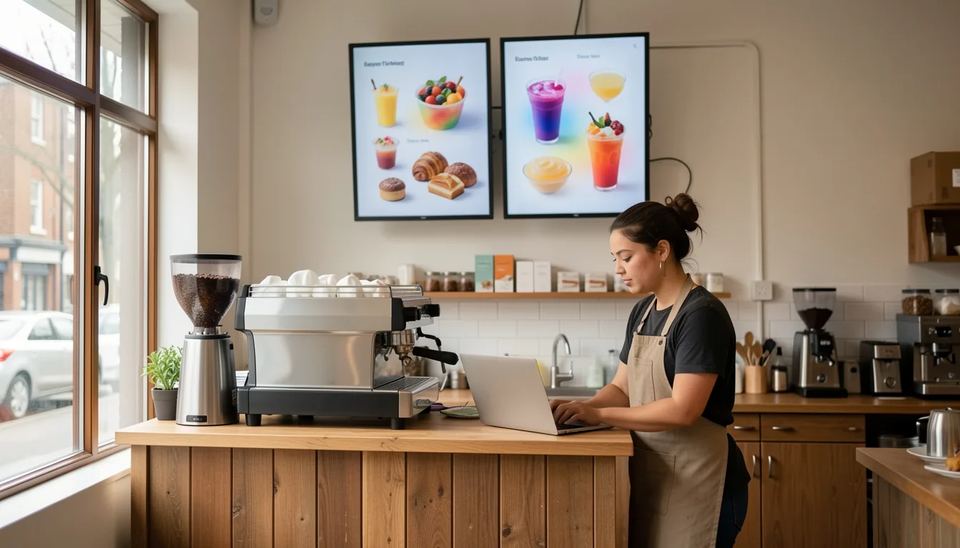
Cafe with 2 menu boards: the seasonal latte promo
Before: the owner snaps the latte on a busy counter, sends it to a freelancer, waits a day or two for a cleaned-up graphic, then downloads it and re-uploads it to the CMS.
After: upload the same photo and remove the background in one click. Then use Edit with AI to place the cup on a warm wooden table and Animate with AI to make the steam move for a few seconds. Schedule it on one zone of the menu board from 7 to 11 am. You see the cost before each step, and the original photo stays in the library for next month’s promo.
One rule from experience: only show food you actually serve. If a generated pastry looks better than the real one, customers notice at the counter.
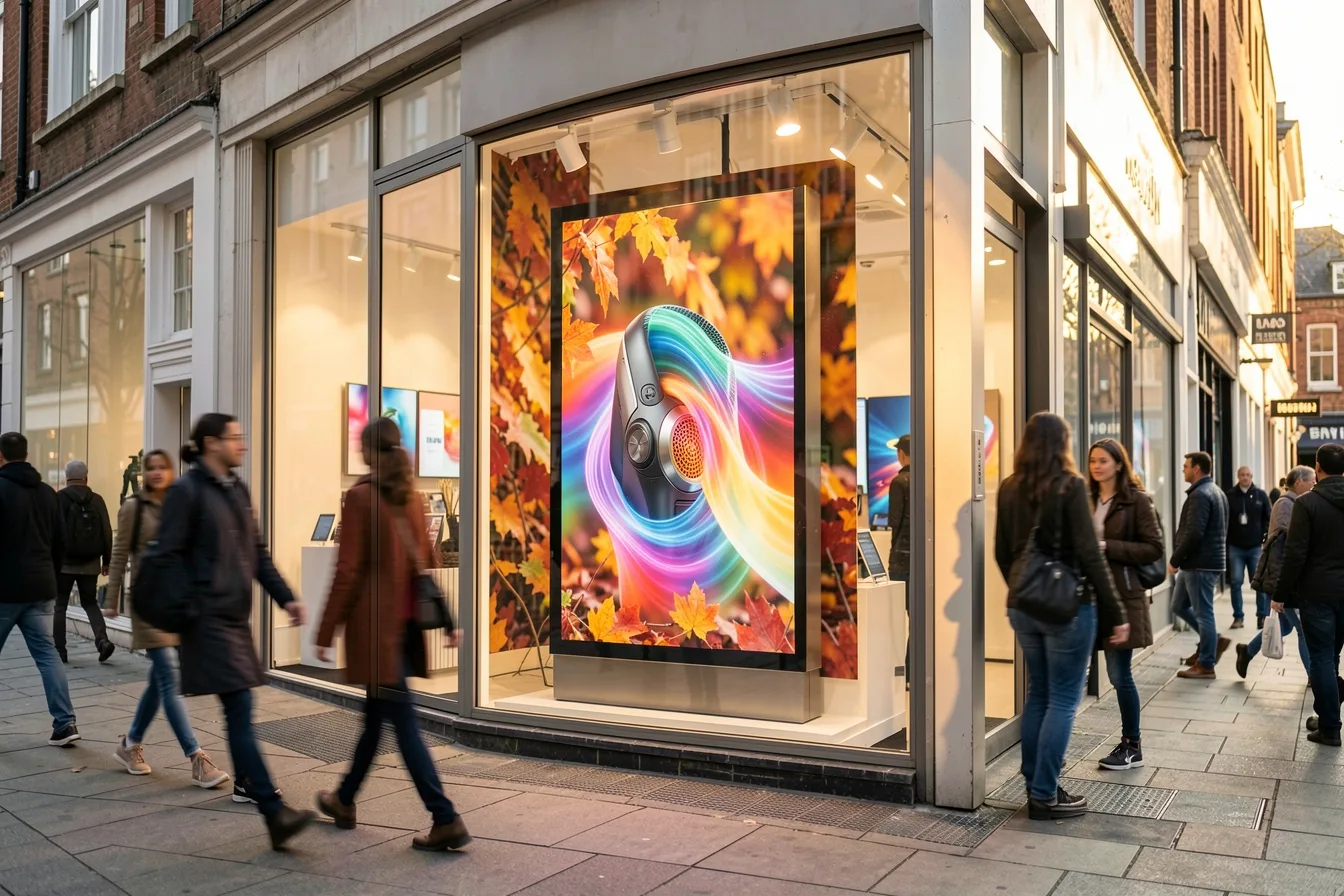
Retail window: a 55-inch screen facing the street
Before: the store reuses head office’s national campaign video. It does not mention the local offer and nobody changes it for six weeks.
After: take the product shot from the canvas as a reference image and generate a new seasonal background with the Product tag. Then make a 6-second video for the window loop. Video is priced per second, so a 6-second clip costs half as much as a 12-second one. Keep it short.
AI does not fix the hardware. A regular TV of about 350 nits (nits measure screen brightness) looks washed out in afternoon sun. A window screen needs a high-brightness panel and high-contrast artwork, whatever tool made the picture.
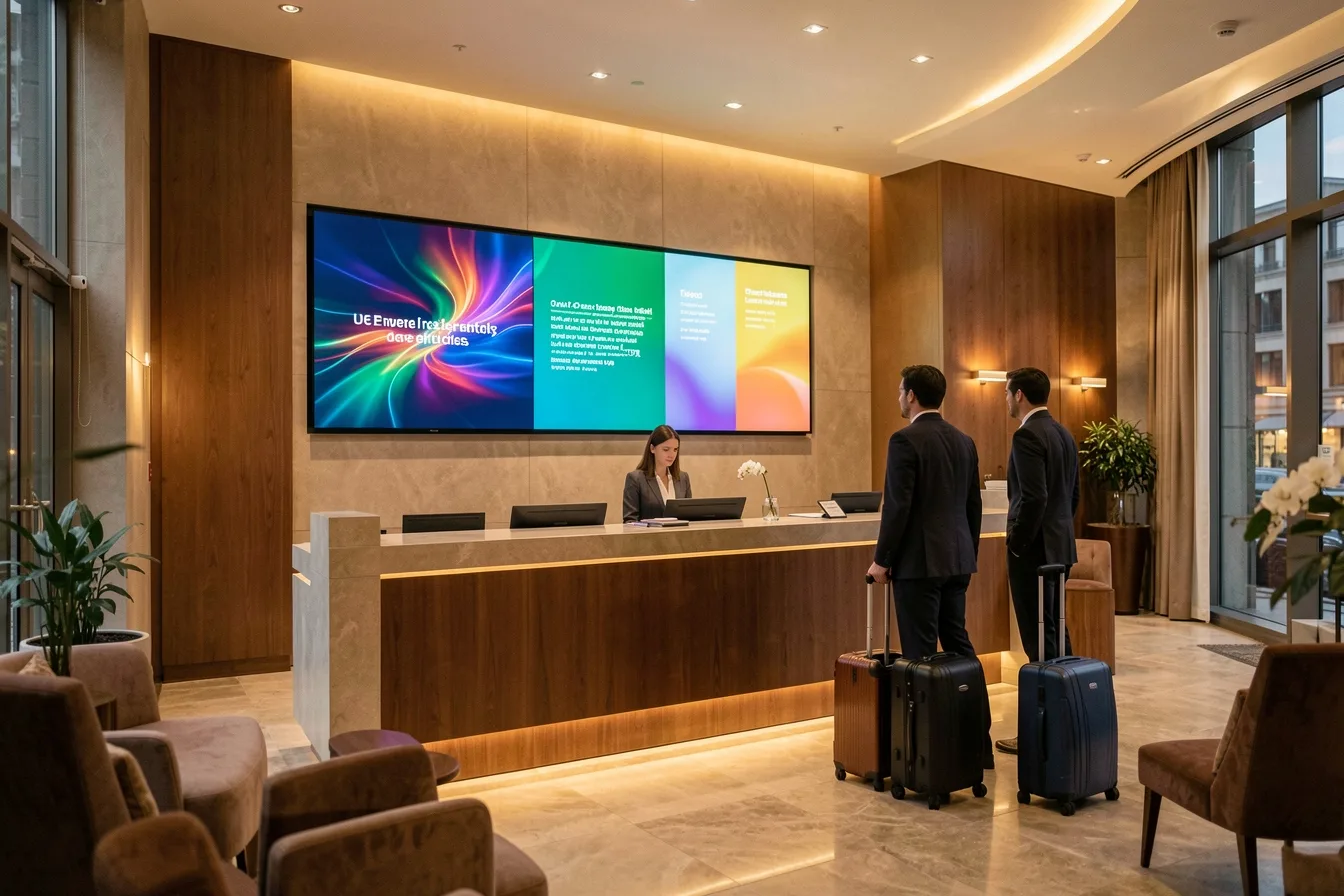
Lobby screen in three languages
Before: reception types a notice in English. Translations come from a colleague when someone remembers, so the Spanish and French slides fall out of date.
After: write the notice once, then use the text tools to translate it into each language. Translated text often runs longer and spills out of the box, so run “make shorter” on the long version. Use a multi-zone layout or rotate the languages in the playlist.
Have a native speaker check anything about safety, health or money before it goes live. Machine translation of a fire exit instruction is not the place to save five minutes.
Where AI tools save time and where they do not
AI saves time on small, repeated production jobs. It does nothing for a weak offer or content nobody owns.
| Task | Time saved | What still needs a person |
|---|---|---|
| Cutting out product photos | High | Checking the edges at 4K |
| Seasonal backgrounds | High | Brand colors and fonts |
| Translating notices | High | Native check on safety text |
| Short promo videos | Medium | Keeping the clip short, watching cost per second |
| Deciding what to promote | None | The owner or marketer |
The friction we see on real installs has little to do with design. TVs install firmware updates overnight and reboot to the wrong input. Staff do not know who owns the screens. A promo for a sold-out item runs for three weeks. Before you budget for AI, name one person who updates the screens every week. Our guides on content that converts and the hidden costs of digital signage cover both sides.
How to roll out AI content tools without wasting money
Start with images, prove the routine, then add video.
- Pick one recurring job, such as the weekly special or the monthly lobby notice.
- Test image tools on a free trial. Look DS includes image tools in its 14-day trial. Video needs a paid plan.
- Set a monthly AI budget and check the price shown before each run, especially for video.
- Lock brand rules: fonts, colors and a logo position in a template, so AI output drops into a fixed frame.
- Check on the real screen. Look at the result from 3 meters away and at an angle, not only on your laptop.
- Keep the originals. Non-destructive editing means you can go back to last season’s version.
With 1 to 3 screens, I would start with background removal and text tools, because they pay off from day one. Add generated video once someone owns the content calendar. Plan pricing and screen count on Look’s pricing page.
Disclosure: Digital Signage Trends is published by Look Digital Signage.
FAQ
Do AI content tools in digital signage cost extra?
Often, yes, either as credits or through a separate subscription. In Look DS, AI runs are paid from a Look Coins balance, priced per image or per second of video, and the price shows before you run it. Yodeck’s AI Agent needs a paid plan with your own AI assistant.
Can AI generate video for digital signage screens?
Yes. Look DS generates clips of 3 to 12 seconds from a prompt and can animate a still image in place. Keep clips short for loops and window screens, because cost is per second.
Will AI editing overwrite my original photos?
Not in Look DS: every AI action creates a new file and the original stays in the library. In any other tool, check this before you edit brand assets, and keep master files outside the CMS as well.
Is AI translation good enough for public screens?
For menus, promos and general notices it usually is, after a quick read by someone who speaks the language. For safety, medical or legal text, have a native speaker approve it before it goes live.
Which digital signage software has the most AI content tools in 2026?
Among the four platforms compared here, Look DS covers the most content jobs inside the editor: image and video generation, prompt-based editing, background removal, animation and text tools. OptiSigns is strong on prompt-to-layout drafts, ScreenCloud on text-to-post and content scoring, and Yodeck on text help and account automation.
Sources
- Look Digital Signage: AI digital signage
- Yodeck: Editing and Customizing Content in the Layout Editor
- Yodeck: Instant Image Background Removal
- GlobeNewswire: Yodeck Launches AI Agent for Digital Signage Management
- Yodeck AI Agent: AI Digital Signage in Plain Language
- ScreenCloud: Using AI to Create Better Digital Signage Content
- ScreenCloud Help: Screen Score
- OptiSigns: Meet OptiSigns AI Designer
- OptiSigns Designer 2.0: What’s New and Improved
- OptiSigns Designer product page